Laptop Problems and Solutions: Your Guide to the 9 Most Common Issues and Their Causes
Laptop Problems and Solutions: Your Guide to the 9 Most Common Issues and Their Causes
Laptop Problems and Solutions: Your Guide to the 9 Most Common Issues and Their Causes
Laptops have become essential tools for work and study for millions of people, and any malfunction does not just disrupt the device but your entire day. The good news is that most laptop problems are not random. They have known, recurring causes, and some can be handled at home with simple steps.However, the real difference between a user who keeps their device running for years and one who loses it early is knowing when to stop. Many minor issues turn into permanent damage to the motherboard or screen because the owner tried to fix them without professional help or ignored them for weeks.In this guide, we cover the nine most common laptop problems, the causes of each one, what you can do yourself, and most importantly, when professional intervention becomes a necessity rather than an option.
1. Laptop Overheating
Overheating is the most common laptop problem of all, and its symptoms are clear: noticeable heat around the base of the device or keyboard area, a sudden drop in performance during demanding tasks, and, in advanced cases, automatic shutdown without warning. This shutdown is not a fault in itself. It is a protection mechanism activated by the processor to prevent heat damage.
What Causes a Laptop to Overheat?
Dust buildup inside the fans and ventilation openings, which is the leading cause in Egypt's climate
Dried thermal paste between the processor and heat sink after two to three years of use
Using the device on a soft surface such as a bed or pillow, which blocks the lower ventilation openings
Running demanding games or design software on a device that is not designed for them
What You Can Do Yourself
Raise the device above the surface using a cooling pad or even a simple stand that allows air to flow underneath it. Clean the external ventilation openings with compressed air from a suitable distance. Review the programs running in the background and close anything you do not need, as some applications consume processor resources without you noticing.
When You Need a Service Center
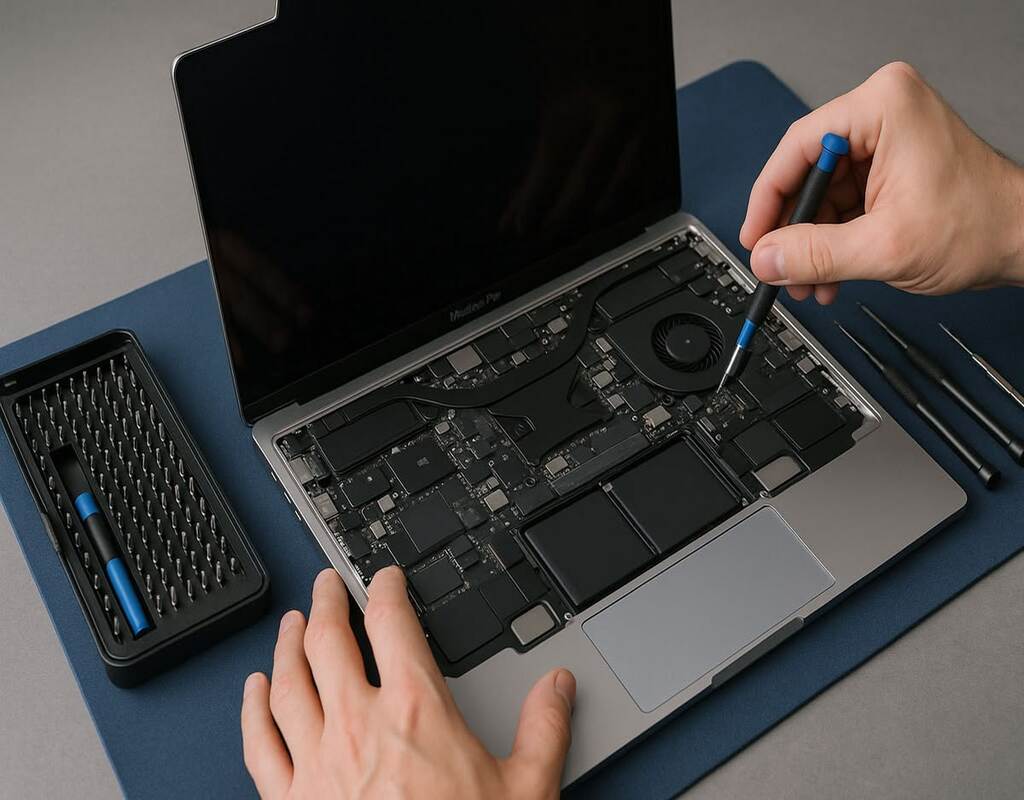
If the high temperature continues after external cleaning, the problem is most likely internal: either dust has accumulated on the heat sink itself, or the thermal paste has dried out and lost its ability to transfer heat. Replacing thermal paste requires disassembling the device, cleaning the processor, and applying a precise amount. Any mistake at this stage can make the problem worse instead of solving it. You can book an inspection for your device through the 2B Fix device maintenance service to have the issue handled professionally.
2. The Laptop Is Not Charging
This is one of the most confusing problems because the symptoms may look similar even though the causes and repair costs differ completely. You may see a “plugged in, not charging” notification, the device may not respond at all when the charger is connected, or the charge level may stop at a fixed percentage and go no higher.
What Causes a Laptop Not to Charge?
Damage to the charger or cable itself, which is the simplest and least expensive cause
A faulty charging port inside the device caused by repeatedly pulling the cable at the wrong angle
The battery reaching the end of its lifespan after a certain number of charging cycles
A fault in the motherboard's power circuit, which is the most serious possibility
What You Can Do Yourself
Start with the simplest step: try another compatible charger to confirm that the charger is not the problem. Visually inspect the charging port. If it is loose, tilted, or needs pressure at a certain angle to work, this is a direct sign of damage. You can also try a hard reset: disconnect the charger, remove the battery if it is removable, hold the power button for ten seconds, and then reconnect everything.
When You Need a Service Center
If the charging port is the cause, the repair requires precise soldering on the motherboard and cannot be done at home. Battery replacement also requires an original part with the correct voltage specifications, as counterfeit batteries can cause charging problems and may pose a real safety risk.
3. The Screen Is Black or Displays No Image
In this case, the device is actually running: you can hear the fan and see the indicator lights, but the screen is completely black or shows only a very faint image that can be seen under strong light.
What Causes a Black Laptop Screen?
Damage to the display cable that runs through the hinge and bends continuously whenever the laptop is opened or closed
A fault in the screen backlight, in which case the image is present but not illuminated
A fault in the graphics card or motherboard
Damage to the screen panel itself due to impact or pressure
A Quick Test That Can Save You a Lot
Connect the laptop to an external monitor or television through the HDMI port. If the image appears normally on the external screen, the problem is with the laptop screen or its connecting cable, and the motherboard is working properly. If the external screen also remains black, the problem is deeper and relates to image processing inside the device.
When You Need a Service Center
Both cases require professional intervention. The difference is that the first case usually involves replacing the screen or cable at a known cost, while the second requires careful motherboard diagnostics. Always start with a diagnosis before buying any part. You can take the device to the 2B Fix service center to identify the source of the fault accurately before making any decision.
4. Slow Performance and Constant Freezing
Slow performance is rarely a sudden fault. It is usually a gradual decline that users notice when comparing the device with how it performed when it was new: longer startup times, delays when opening programs, and temporary freezing when switching between windows.
What Causes a Laptop to Run Slowly?
A full storage drive, as the system needs free space to operate efficiently
Insufficient RAM for the number of open programs, especially with modern operating systems
Using a mechanical HDD instead of an SSD
Too many programs launching automatically at startup
What You Can Do Yourself
Free up space on the system drive and keep a reasonable percentage available. Review the startup programs list and disable anything you do not need. Uninstall unused programs instead of simply leaving them disabled.
The Long-Term Solution: Upgrading
If the device still uses an HDD, upgrading to an SSD is the single change that makes the most noticeable difference in speed. It often restores the feeling of new-device performance at a much lower cost than buying a replacement. Increasing the RAM is a complementary option if your work involves running several programs at the same time.
5. The Battery Drains Quickly
A battery is a consumable component by nature, and its lifespan is linked to the number of charging cycles rather than the age of the device. A gradual decline in performance is normal, but there comes a point when it becomes a fault that requires replacement.
What Are the Signs of a Damaged Laptop Battery?
A sharp reduction in operating time compared with previous months
The device shutting down suddenly even though the displayed percentage is still high
Illogical jumps in the charge percentage, either upward or downward
Noticeable battery swelling, a raised area on the base of the device, or difficulty closing the lid
An Important Warning About Swelling
A swollen battery is not a performance issue but a safety issue. Stop using the device immediately. Do not press, puncture, or forcefully remove the battery. Take it to a professional for safe disposal and replacement.
Habits That Extend Battery Life
Avoid leaving the device in high temperatures, as heat is the battery's main enemy. Do not leave it connected to the charger for days at a time if your device does not support smart charging management. Always use the original charger or an approved alternative with the same specifications.
6. The Fan Is Constantly Loud
It is normal for the fan speed to increase when demanding tasks are running and then decrease afterward. What is not normal is for it to run at maximum speed all the time or produce a grinding or clicking sound that differs from the usual sound of airflow.
What Causes a Loud Laptop Fan?
Dust buildup that forces the fan to work at maximum capacity to compensate for restricted ventilation
Wear in the fan bearing itself, in which case the sound is mechanical rather than airflow noise
A consistently high processor load caused by a program stuck in the background
A direct connection to the overheating problem mentioned in the first section
When You Need a Service Center
If the sound is mechanical or continues after external cleaning, the fan needs to be removed for thorough internal cleaning or replacement. Internal cleaning is often a good opportunity to renew the thermal paste during the same visit, solving two problems at once. The 2B Fix services include fan and thermal paste replacement as part of laptop maintenance.
7. A Broken Screen or Damaged Hinge
Screen and hinge problems are more closely connected than most users realize, which is why we discuss them together.
Why Should You Not Ignore the Hinge?
A loose or broken hinge may initially seem like a cosmetic problem, but it develops quickly. Every time the laptop is opened or closed, the damaged hinge puts pressure on the plastic frame until it cracks, then begins pressing on the display cable that runs beside it. As a result, a simple and inexpensive problem can turn within weeks into a full screen replacement and chassis repair. The earlier this particular problem is treated, the less expensive the repair will be.
Original Screen vs. Replacement Screen
The differences are not limited to price. Screens vary in resolution, brightness, viewing angles, and color quality. A low-quality replacement screen may work, but it provides a noticeably poorer user experience and may not be fully compatible with the device cable or display settings. Always ask about the type of part before approving the repair and request a written warranty for it.
This Problem Cannot Be Fixed at Home
Removing the screen requires specialized tools and experience in handling the flexible cable, which can be damaged by even a slight incorrect bend. Attempting a self-repair here often results in a higher cost.
8. The Keyboard Is Not Responding
The keyboard may stop working completely, specific keys may become unresponsive, or one character may repeat on its own.
What Causes a Laptop Keyboard to Stop Working?
Liquid spills, which are the most common and most dangerous cause
Damage to the flexible cable connecting the keyboard to the motherboard
A fault in the drivers or system settings
Normal wear on heavily used keys after many years
What You Can Do Yourself
If liquid is spilled, immediately turn off the device by holding down the power button, disconnect the charger, turn the device upside down to let the liquid drain out, and do not turn it back on just to check whether it works. Restarting the device while liquid is still inside is what turns a replaceable keyboard problem into motherboard damage.In other cases, try connecting an external keyboard through USB. If it works normally, the problem is with the internal keyboard rather than the system. This test can save diagnostic time.
9. The Device Does Not Turn On at All
This is the most serious and alarming problem: no lights, no sound, and no response from the power button.
What Are the Possible Causes?
A fault in the adapter or power source
A fault in the motherboard's power circuit
Motherboard damage caused by chronic overheating, an electrical short, or a previous liquid spill
A completely failed battery in some models
Why Does This Require Professional Diagnosis?
Unlike the previous problems, there is no useful step to take at home other than checking the charger and power source. Attempts to disassemble and test the device in this condition can turn a repairable fault into permanent damage. Motherboard repair requires measuring instruments, precision soldering equipment, and experience tracing power paths. This is exactly the type of work in which an authorized service center makes a real difference.
When Is a Repair Worth It, and When Should You Buy a New Device?
This is a question every user faces when their device breaks down, and the answer depends on three practical criteria:The ratio of repair cost to the device's current value. If the repair cost approaches half the device's current market price, comparing it with the cost of purchasing a replacement becomes reasonable. If it is much lower, repair is clearly the more economical decision.The age of the device and how well it meets your needs. A three-year-old device that still handles your work efficiently is worth repairing. However, if the device can no longer meet the requirements of your essential programs, repairing it may only postpone an inevitable decision.The type of fault and availability of spare parts. Replacing a battery or screen, or upgrading a drive, are specific repairs with clear outcomes. However, several faults accumulating at the same time may indicate that the device has reached the end of its practical lifespan.The most important rule is not to make a decision before diagnosis. Many devices that their owners believe are finished only need one limited repair. Get an accurate diagnosis from an authorized service center first, then compare your options.
How Do You Choose a Reliable Service Center?
Choosing a service center is just as important as the fault itself because one incorrect repair could cost you the entire device. These are four criteria to consider:Official authorization from the manufacturer. An authorized center follows the manufacturer's diagnostic and repair procedures and obtains spare parts from approved sources.The type of spare parts used. Ask directly about the part before approving the repair and request written clarification of its type.A written warranty for the repair and the part. The warranty is the only practical proof of the center's confidence in its work.Clear device receipt and collection procedures. Knowing the status of your device and when it will be ready is an essential part of the service, not an added benefit.
2B Fix Service
2B Fix is 2B's after-sales service division, providing repair, part replacement, and upgrade services for laptops, mobile phones, tablets, gaming devices, televisions, and audio systems. The service is officially authorized as a repair partner for Acer and HP, in addition to providing maintenance services for more than 60 brands.The service includes a warranty of up to 12 months on repairs and replaced parts, the use of original or quality-approved spare parts, and customer notification by text message or email as soon as the device is ready for collection. Service points are available in more than 40 locations across Egypt, including Cairo, Giza, Alexandria, and other cities.
Frequently Asked Questions
What causes a laptop to overheat constantly? The most common cause is dust buildup inside the fans and heat sink, followed by dried thermal paste after two to three years of use. If the heat continues after cleaning the external ventilation openings, the problem is internal and requires professional disassembly and cleaning.How long does it take to repair a laptop screen? The time depends on the availability of the correct part for the device model. Common models are usually repaired faster, while less common models may require additional time to source the screen. The exact time can be determined after diagnosis.Does replacing the battery affect the device's performance? An original or approved battery with the same voltage specifications does not have a negative effect. Instead, it restores the device's normal operating time and resolves sudden shutdown problems. Issues only arise with counterfeit batteries that do not meet the required specifications.What is the difference between an authorized service center and a regular repair shop? An authorized center follows the manufacturer's procedures, uses spare parts from approved sources, and provides a written warranty for the repair. These three elements protect your device from a temporary fix that allows the problem to return after a few weeks.
Conclusion
Most laptop problems start small: slightly high temperatures, a loose hinge, or a battery that drains faster than usual. What determines the final cost is not the fault itself but how quickly it is addressed. Early diagnosis turns most of these problems into simple repairs, while delay can lead to the replacement of entire components.If you notice any of the signs mentioned in this guide, the right step is to get a diagnosis before making any decision. Book a device inspection with 2B Fix and receive an accurate assessment of your laptop's condition, with a warranty of up to 12 months on the repair.











Comments